Stock Sync
Dropshipping stock synchronisation
A dropshipping store sells from a supplier's availability signal, which can be late, incomplete or mismatched to the store's variants.
A dropshipping store sells from a supplier's availability signal, which can be late, incomplete or mismatched to the store's variants. Stock synchronisation requires reliable product mapping, a rule for stale or missing data, and a check that the storefront stopped taking orders when it should.
Establish the source of truth
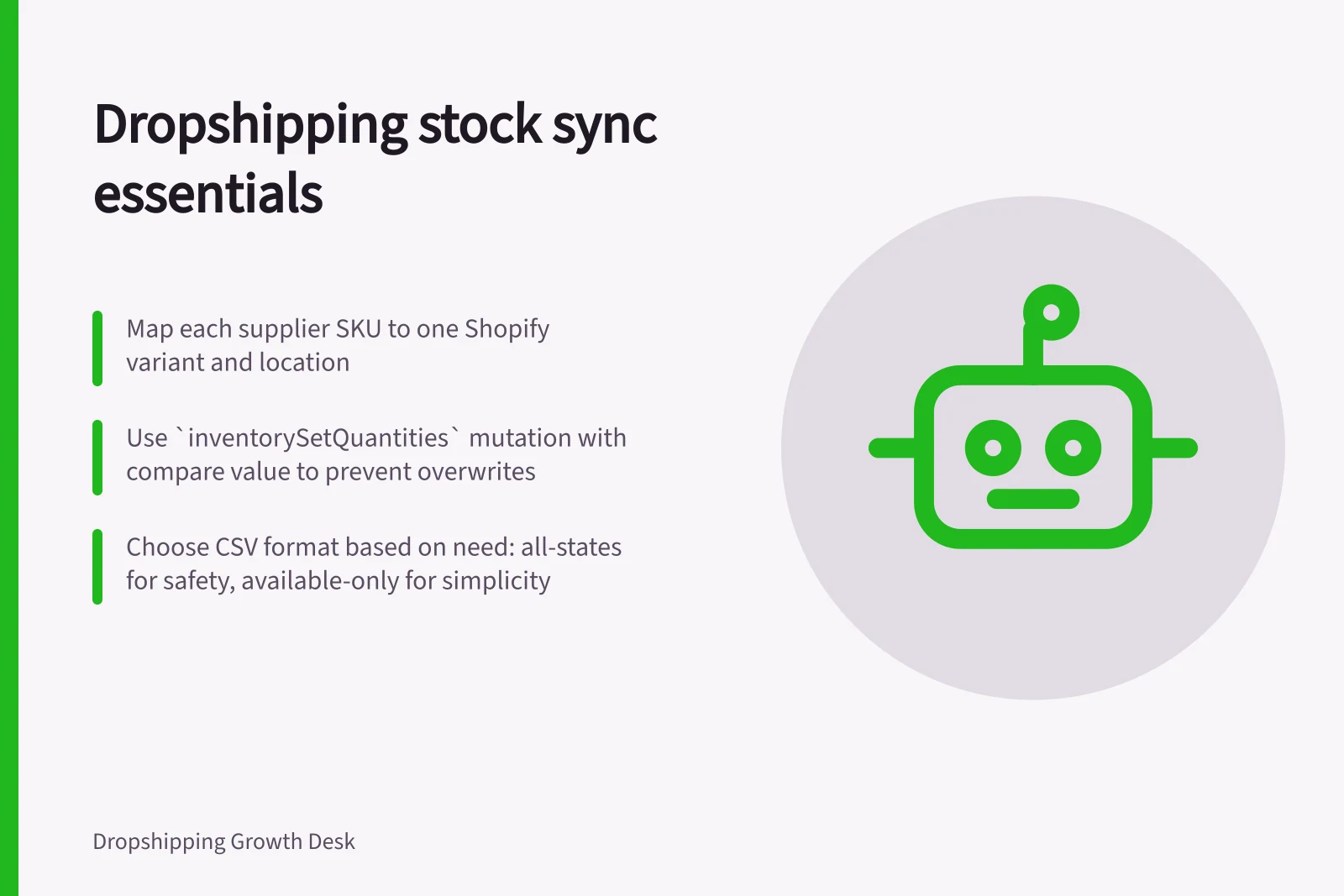
Map each supplier SKU and variant to exactly one store variant, location and sales channel. Record which system owns available quantity and which may adjust it. Shopify's inventory setup guidance asks whether any products ship directly from suppliers, and includes a step for configuring product out-of-stock behaviour.
To synchronise automatically, connect the supplier's inventory source to Shopify through an integration or dropshipping app that supports inventory updates. Map the supplier's product and variant identifiers to the corresponding Shopify variants, then configure the integration to send quantities to the relevant Shopify location.
Check that its capabilities match the updates you need: an app that connects to a supplier or automates product imports does not necessarily provide the inventory synchronisation you expect.
Steps to Establish Reliable Stock Synchronisation
- Map supplier SKUs and variants to Shopify variants, locations and sales channels
- Identify which system owns available quantity and may adjust it
- Connect supplier inventory via integration or dropshipping app supporting updates
- Verify the app supports real-time inventory sync, not just product imports
Choose what Shopify tracks
Shopify inventory is assigned to locations, which can represent warehouses, retail stores or fulfilment centres. A store has one default location and can add more. Set up the locations that will hold stock before assigning inventory, so quantities can be allocated to the appropriate place.
Tracking is useful for physical products, limited-quantity items, products that need reordering from suppliers and products sold through Shopify POS. Shopify identifies digital products, services, made-to-order products and gift cards as types that might not need inventory tracking. Decide product by product rather than assuming every catalogue item needs a quantity.
Key Inventory Tracking Considerations in Shopify (Australia)
- Default Location
- One per store; essential for initial inventory assignment
- Multiple Locations Supported
- Yes – useful for physical products, POS, and regional fulfilment
- Digital Products & Services
- Do not require inventory tracking in Shopify
- GST & ABN Compliance
- Ensure inventory tracking aligns with ATO reporting requirements for business operations
Treat absence differently from zero
A missing row, an explicit zero quantity and a stale timestamp are different conditions, and each needs its own rule in the sync.
Match the supplying location to the customer's destination: a quantity held at a location that cannot ship there is not available to that customer.
Monitor the sync as an operation
Logging the feed timestamp, row count and quantity changes keeps exceptions visible.
When a variant is no longer offered on a sales channel, it can be unpublished from that channel rather than deleted: Shopify supports unpublishing individual variants from a sales channel without deleting them or creating duplicate products.
Keep open-order handling separate: customers who already paid still need a confirmed fulfilment or resolution path. A good sync prevents a new promise from being made on uncertain stock and makes every exception visible to a person who can act.
Choose a quantity transfer method
For bulk changes, Shopify's inventory CSV can export current quantities and provide a file for updating inventory by product, variant and location. An export can cover one location or all locations, and the resulting product identification details help match the quantities being updated to the relevant inventory records.
The CSV's all-states format separates inventory into states, including incoming, unavailable, committed and available quantities, alongside current and new on-hand quantities. Shopify recommends this format because it gives a more complete inventory view and protection against accidental overwrites.
The available-only format is simpler for basic updates: location names appear as column headings and the file contains available quantities. It does not provide the same protection against accidental overwrites. Choose the format deliberately, especially when working with multiple locations or when other inventory states matter to the quantity being changed.
Inventory CSV Formats: All-States vs Available-Only
- All-States FormatProvides complete inventory view including incoming, unavailable, committed and available quantities. Offers protection against accidental overwrites.
- Available-Only FormatSimpler format with location names as column headings and only available quantities. Less protection against accidental overwrites.
Guard against concurrent quantity updates
If an integration uses Shopify's inventorySetQuantities mutation, it can submit the quantity it expects to find as a compare value. Shopify updates the quantity only when the stored value matches; if it does not, the mutation returns an error. This compare-and-set check helps prevent one update from silently replacing a quantity changed by another request.
Shopify says to use this mutation only when the calling system acts as the inventory source of truth. Its documentation recommends including the compare value and using ignoreCompareQuantity only when necessary, because opting out can produce inaccurate quantities when requests run concurrently. The mutation also requires the write_inventory access scope and user permission to update inventory.
Pros and Cons of Using `inventorySetQuantities` Mutation for Sync
- ProsPrevents silent overwrites by checking stored value before updating; ensures data integrity during concurrent updates.
- ConsRequires `write_inventory` access scope and user permission; using `ignoreCompareQuantity` can lead to inaccurate stock levels if used unnecessarily.
In this guide
- Handling products that disappear from a supplier feedA missing feed row is an ambiguous signal.
- Setting a buffer before a supplier reaches zero stockA supplier quantity of five is not always five units available to your store.
- Preventing orders for discontinued variantsPreventing orders for discontinued variants: practical criteria and a clear evaluation process for marketing teams.
- Monitoring failed inventory updatesAn inventory feed can arrive on time while some rows fail to update.